
When should you use groups, components and tags in SketchUp?
Use groups for independently edited geometry, components for repeated objects that should share a definition, and tags to control visibility. Tags do not separate geometry. In a Lizark model, preserve generated assembly ownership and test changes on a copy before reorganizing objects.
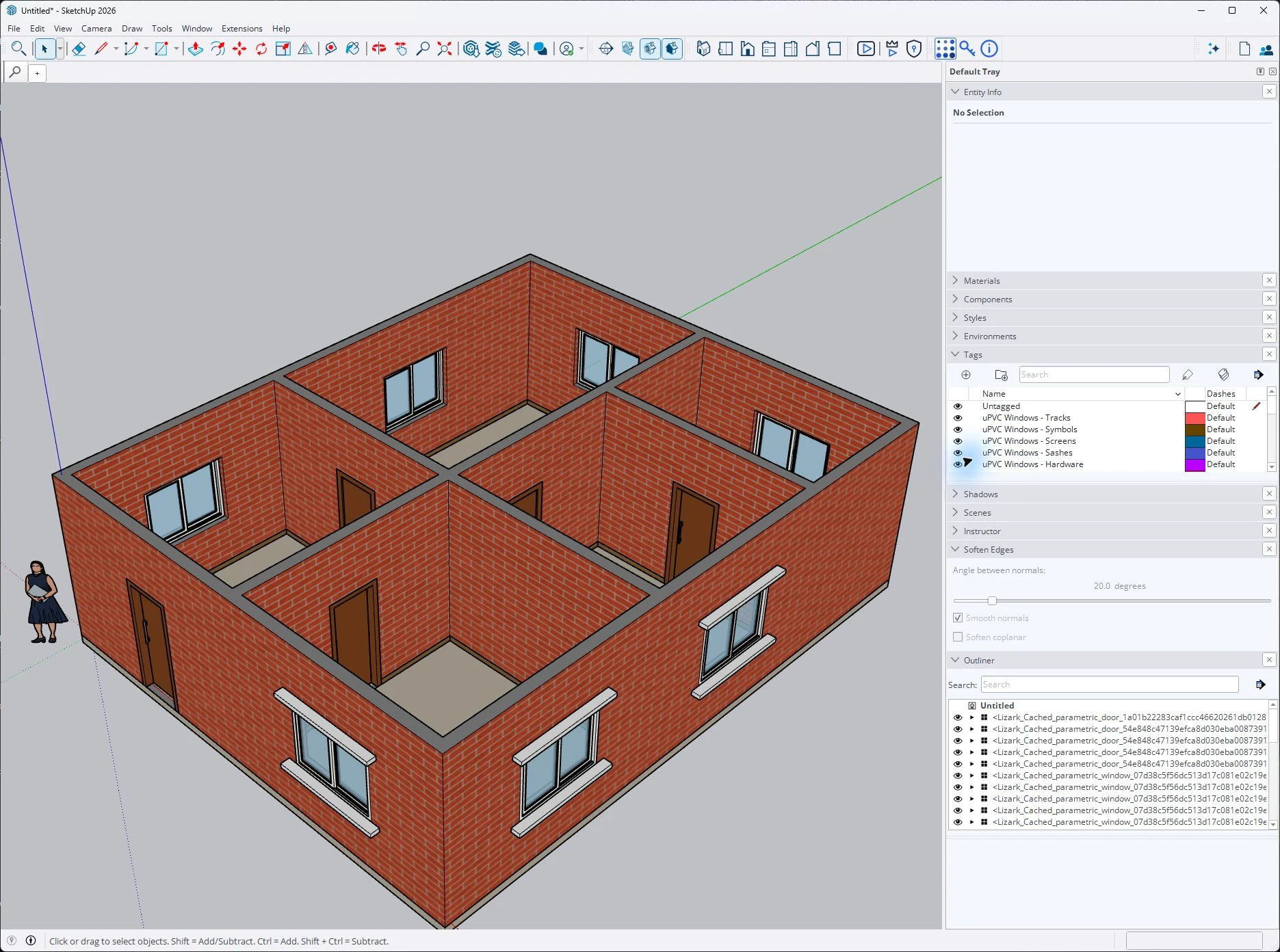
Open Window → Default Tray → Outliner. Locate a door or window instance and inspect its position in the model tree.
- The Outliner tree identifies generated instances separately from the viewport.
- Expansion triangles reveal children; inspect them before editing an assembly.
- Connect the selected tree entry to the corresponding object in the building.
Checkpoint: Know which container you are editing before changing geometry. Preserve generated assembly ownership.
About this capture
Outliner shows real generated component definitions. Long cached names are implementation identifiers, not a recommended office naming convention. Captured live in SketchUp 2026 on October 12, 2026. Numbered markers are page annotations; original pixels are preserved.
The numbered photographs show a separate live Lizark demonstration model. Worked dimensions in the text remain illustrative exercises; the captures are not a measured revision or exchange benchmark.
Organize for the next edit
Use groups to separate independent pieces, components when repeated objects should share a definition, and tags to control visibility. These decisions solve different problems. A tag does not create an editing boundary, and a named group does not make its geometry a coordinated building object.
For an architectural model, a useful test is simple: can another person select a wall, change one window and hide the reference drawing without damaging unrelated geometry? If the answer is unclear, organize the model before adding more detail.
This guide proposes a small building hierarchy and a repeated-window exercise. They are illustrative working conventions, not a mandatory office standard or a claim about every Lizark-generated object.
Choose the container from the editing intent
Think about what should change together before choosing a container. A unique partition has a different future from a window used twelve times. Two walls with the same material may still need independent edits.
| Object | Starting choice | Reason to reconsider |
|---|---|---|
| Unique partition | Group | It becomes a repeated, standardized assembly |
| Repeated window type | Component | One instance needs a distinct design |
| Imported drawing reference | Separate locked container | A new revision needs comparison |
| Furniture used repeatedly | Component | Imported detail is unnecessarily heavy |
| Unique site boundary | Group | The boundary must be shared across linked projects |
These are modeling decisions, not automatic rules based on object names. A door can be unique; a wall panel can be repeated. Decide whether shared editing is desirable for that object.
SketchUp describes groups and components as ways to isolate geometry into objects. Its grouping documentation explains the editing boundaries. Use those boundaries deliberately: leaving all building edges in one loose collection makes later selection and changes harder to control.
Test shared definitions before using them widely
Consider three identical windows, named W01_A, W01_B and W01_C, that use one component definition. If all three should receive the same frame change, shared editing is useful. If only the bathroom window should become a different type, establish a separate definition for that variation before changing it.
The architectural question is not merely whether an object repeats today. Ask whether it is intended to remain the same specification. Identical appearance at one revision does not guarantee a shared future.
Use a practice model to check the behavior:
- Place three instances of a basic window component.
- Edit the frame geometry inside one instance and observe the others.
- Make the proposed variation unique, then change it independently.
- Rename the new type so the model communicates why it differs.
Check both geometry and naming after the exercise. If a copied object looks unchanged, it may still share a definition; if names differ, they may still point to the same definition. Inspect the relationship rather than relying on appearance alone.
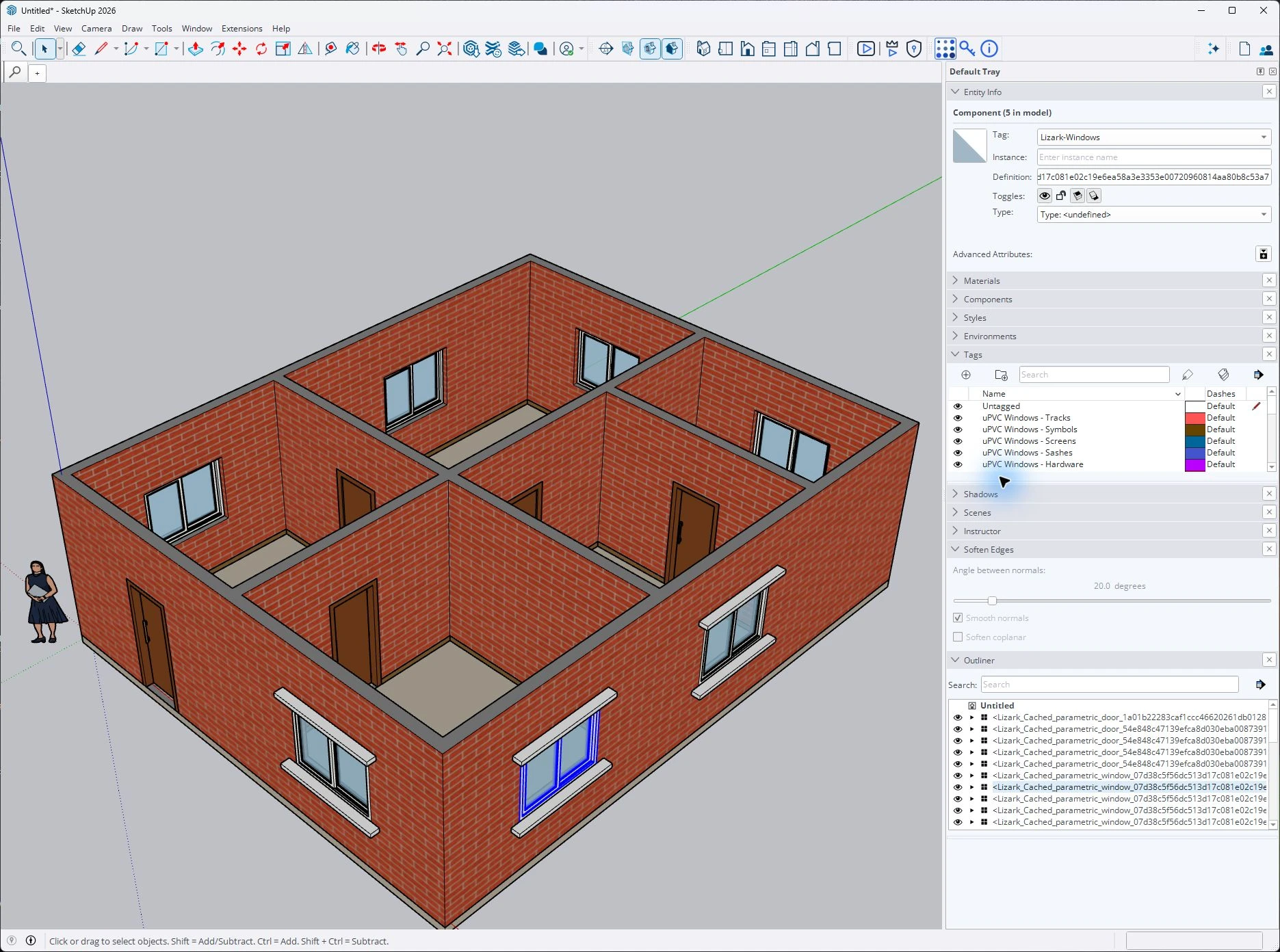
Select a window and read Entity Info before entering its editing context. Check the component definition and tag.
- The blue outline identifies the selected window.
- Entity Info identifies the selection as a component and reports the instance count.
- Read the definition separately from its tag; those describe different relationships.
Checkpoint: Decide whether a change should affect shared instances or require a unique variation.
About this capture
Entity Info reports a component with five instances in this model. This is a selection inspection, not a demonstrated shared edit. Captured live in SketchUp 2026 on October 12, 2026. Markers are page annotations; original pixels are preserved.
Use tags for visibility, not separation
Tags answer “what should be visible?” Containers answer “what can be edited together?” Give raw modeling geometry the Untagged assignment, and apply visibility tags to the intended groups or components. SketchUp’s tag guidance explains this distinction and the connection with scenes.
For example, A_Windows can hide window objects for a review view. It does not isolate their edges from adjacent wall geometry. Likewise, hiding a reference tag does not remove the reference from the file or establish that the current model matches it.
Keep the tag list proportionate to the deliverables. A small house may not need a separate tag for every object. Use object names for identity and tags for useful visibility sets. A project that needs floor-specific drawing views may require a different arrangement from a single-room presentation model.
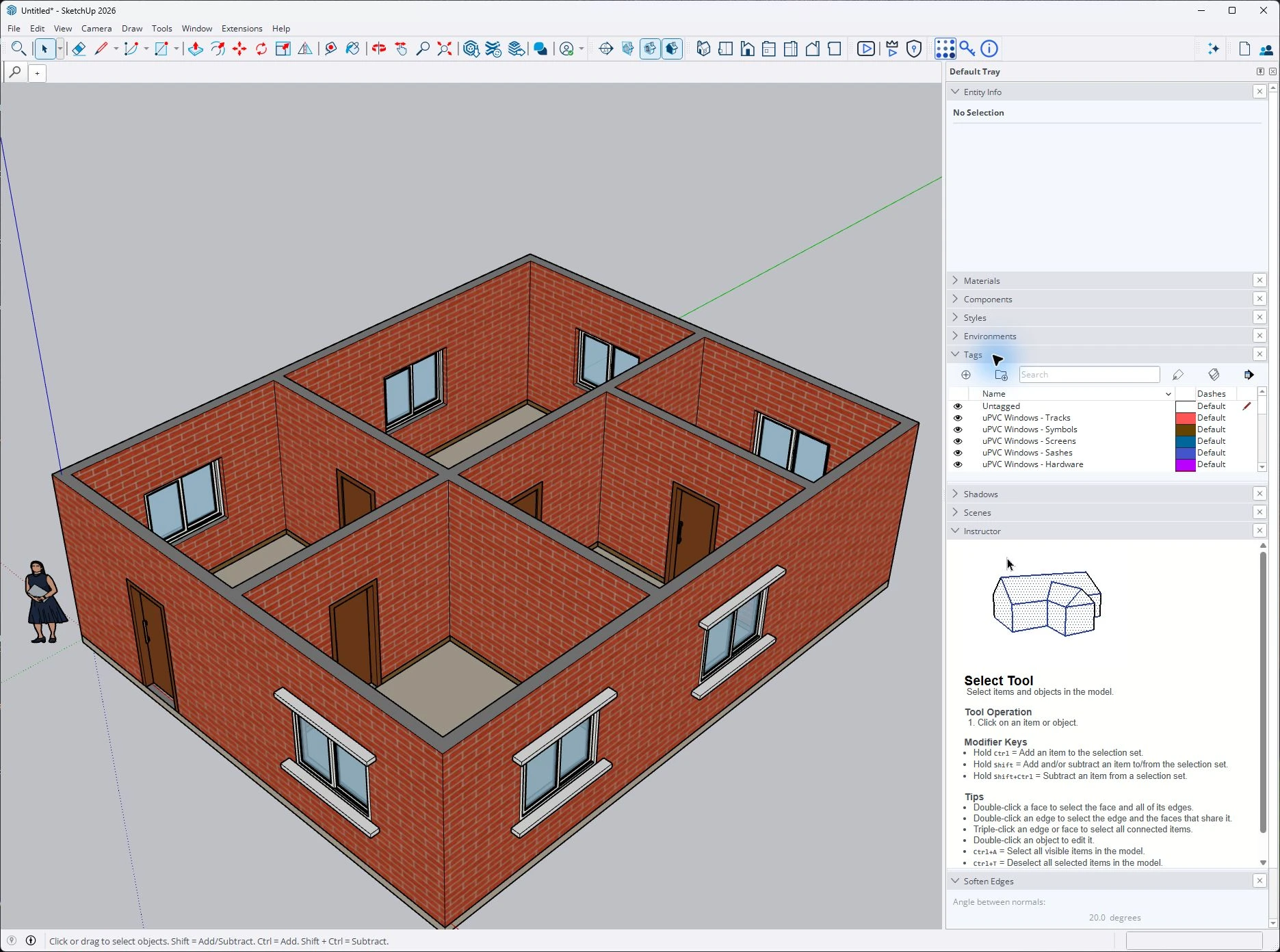
Open the Tags panel. Read the object categories and eye controls before changing visibility for a review scene.
- Eye controls toggle visibility for a category.
- Read the category names so you understand which window parts they affect.
- Check the viewport after a visibility change; do not confuse hidden geometry with deleted geometry.
Checkpoint: A tag changes visibility; it does not create an independent editing boundary.
About this capture
The panel shows real uPVC window-part tags in this model. Captured live in SketchUp 2026 on October 12, 2026. Markers are page annotations; original pixels are preserved.
Build a hierarchy that can be explained
Here is a proposed hierarchy for a small two-level building. Names express identity and location; they are not instructions to move generated plugin objects into new containers without checking their behavior.
- Project
- References
- REF_Level01_RevA
- REF_Level02_RevA
- Level01
- WALL_L01_North
- WALL_L01_Partition_A
- WINDOW_L01_W01_A
- WINDOW_L01_W01_B
- FLOOR_L01
- Level02
- WALL_L02_North
- FLOOR_L02
- Roof
- Site
- References
Do not make nesting deeper merely to look organized. Each extra level should support selection, ownership or review. If selecting a window requires opening several irrelevant containers, simplify the hierarchy. If a whole floor must move together, a floor-level container may be useful.
Write down whether names refer to component definitions, instances or groups. A definition name can describe a reusable type; an instance name can identify a particular location. That distinction helps a reviewer understand why two objects share geometry but serve different rooms.
Respect Lizark object ownership
When working with a Lizark model, inspect the generated hierarchy before reorganizing it. Preserve the source model and test on a copy. Exploding an assembly, stripping its attributes or separating children from their owner may remove relationships a tool needs for later editing.
Use native visibility organization around the workflow instead of assuming that every generated object can safely be rebuilt by hand. If you need to rename or regroup an object, verify that the relevant Lizark operation still finds and edits it afterward. This guide does not claim that arbitrary hierarchy changes are supported.
For feature-specific operations, follow the Lizark tutorial library. For a planned wall or opening change, use the revision checklist before modifying the accepted model.
Review organization before handoff
Ask a colleague to perform three tasks on a copy: select one partition, locate a specific window and switch from a working view to a presentation view. Their difficulty is useful evidence about the model structure.
| Handoff check | What a recipient should understand |
|---|---|
| Reference identity | Which drawing revision the model follows |
| Repeated object types | Which edits intentionally affect several instances |
| Unique variations | Why an object differs from the standard type |
| Visibility sets | Which tags are saved in important scenes |
| Generated ownership | Which assemblies should retain their internal relationships |
| Unresolved items | Which objects or dimensions still need review |
Download the model organization checklist and adapt it to the project. The checklist records decisions; it does not certify the model.
Common organization mistakes
Can I fix sticky geometry by assigning different tags?
Visibility assignments do not establish independent editing contexts. Create the appropriate object boundaries, then decide visibility.
Should every repeated object be a shared component?
Only when shared definition editing suits the intended design. Establish independent variations when their changes should not propagate.
Is an organized model automatically a BIM model?
No. A readable hierarchy helps people work, but information requirements and exchange need separate checks. See the SketchUp BIM workflow article for the product’s stated scope and limitations.